This tax season, let AI help you find deductions
Fellow solopreneurs, freelancers, and home-based business jockeys, we all know how important finding deductions is to maximizing your tax refund each year. We also know that life is busy; we don’t always remember to use the designated business accounts or business credit cards to keep everything as separate as we'd like.
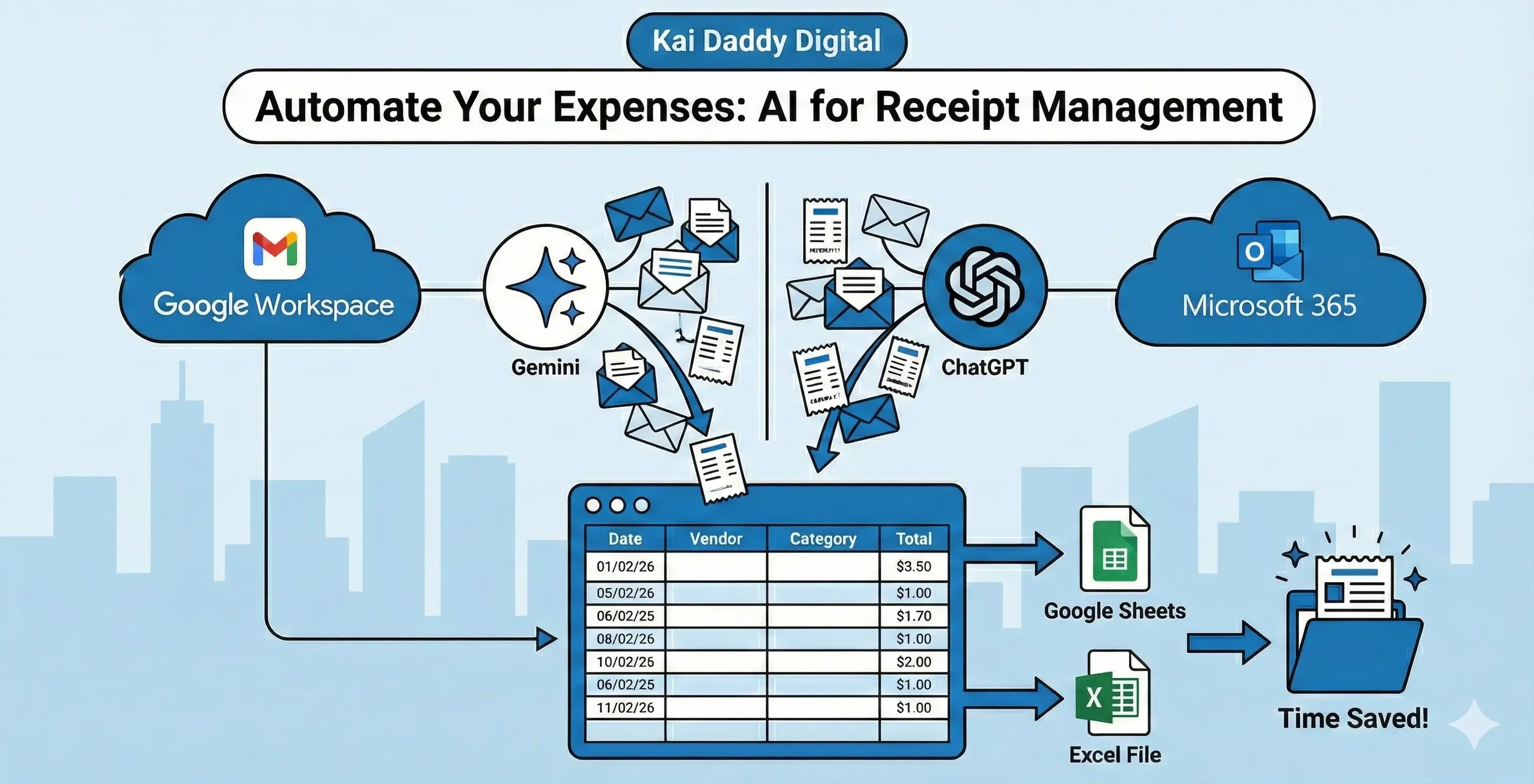
Let AI do all the boring business stuff.
Prompt AI to find more tax deductions
Prompt AI to instantly fetch, organize, and export every piece of your commerce activity into a clean, easy-to-read spreadsheet. Whether you are a Microsoft 365 loyalist or living in the Google Workspace ecosystem, here is exactly how to set up this workflow to reclaim your time.
Google Gemini + Gmail (The Workspace Method)
Because Gemini is natively integrated into Google Workspace, it can pull data directly from Gmail and seamlessly push it into Google Sheets without needing third-party automation tools like Zapier.
Step 1: Enable the Connection
Open Gmail on a laptop or desktop.
In the top right corner, click the Ask Gemini icon (the sparkle).
If you do not see the Ask Gemini sparkle icon, ensure you have an eligible Gemini plan associated with your Workspace account.
Step 2: Prompt for the Data
On the Gemini side panel, the key is to ask for the data to be formatted as a table so it can be exported later.
Example Prompt: "Search my emails for all e-commerce receipts and online order confirmations from 2025. Extract the data and organize it into a table with the following columns: Date, Vendor, Category, and Order Total. Group the results by Category, then by Vendor."
Step 3: Export the Data
Once Gemini generates the table in the side panel, click the Export to Sheets button in the bottom-right corner of the table. Clicking this instantly generates a new Google Sheet populated with their structured commerce data.
You can now either use this data to drive your deductions on your tax form, or compare it to your QuickBooks, CFO Silvia, or whatever tool you use to manage your business.
ChatGPT + Microsoft Outlook (The Microsoft Method)
ChatGPT recently released a native "Connected Apps" feature that allows it to securely read and search a user's Outlook inbox on demand.
Step 1: Enable the Connection
Open ChatGPT, navigate to Settings, and click on Connected Apps.
Select the Outlook Email integration and follow the authentication steps to connect to your Microsoft Outlook inbox.
Step 2: Prompt for the Data
In a new ChatGPT prompt window, instruct ChatGPT to search the connected inbox. Please be aware that because Microsoft limits the amount of data that can be searched at once, design your prompt to search month-by-month to avoid timeouts.
The Prompt: "Search my connected Outlook inbox for all receipts and order confirmations from [Month/Year]. Create a table listing the Date, Vendor, Category, and Total Amount. Sort the table by Category, and then alphabetically by Vendor."
Step 3: Export the Data
Unlike Gemini, ChatGPT doesn't have a one-click export to a spreadsheet program, but it can generate files using its advanced data analysis capabilities.
The Follow-up Prompt: "Convert this table into a downloadable CSV file."
Click the link ChatGPT provides, download the CSV, and open it directly in Microsoft Excel.
By taking a few minutes to run these easy prompts, you are effectively handing off one of the most repetitive administrative chores to a highly capable digital assistant and finding more dollars to keep. The beauty of these AI integrations is that they don't just locate your lost receipts—they structure the raw data so you can immediately plug it into your accounting workflow and get back to actually doing your actual business.
How can Kai Daddy help your business?
If you’re looking to streamline even more of your operations or want to explore a comprehensive, high-level digital marketing strategy that puts your business ahead of the curve, reach out to our team at Kai Daddy Digital. Let's build a smarter workflow together.